[1] 23 R Basics
CautionUnder Construction
These next few chapters cover a lot of ground. Flipping through them, you might feel a flicker of panic and that is completely normal. What you are looking at is not a wall you need to climb in a single day; it is more like a neighbourhood you are about to move into. You do not need to memorize every street on day one. You just need to start walking around.
The goal here is not to turn you into an expert with R, programming, or statistics overnight. These chapters are designed to immerse you in the R language so you can get real, hands-on experience while building a solid foundation underneath your feet. The most productive thing you can do at this stage is to replicate the examples, experiment freely, and try to understand the logic behind the code. Memorization will follow on its own, naturally, as patterns start to feel familiar.
One practical note before you begin: these chapters assume you have RStudio or Positron installed on your computer. If you have not done that yet, now is a great time to pause and set that up (see Section 2.2). Nearly everything covered here will also run in the base R environment that installs alongside R on Windows and macOS, so you have flexibility regardless of which you choose.
3.1 The Console Pane
When you launch the base-R environment (for Windows or Mac), launch RStudio, or launch Positron, somewhere on the screen will be a window pane labelled “Console”. Assuming you have not tweaked the default layout, all three environments will have this located on the left side (see the sections highlighted in red in Figure 3.1).
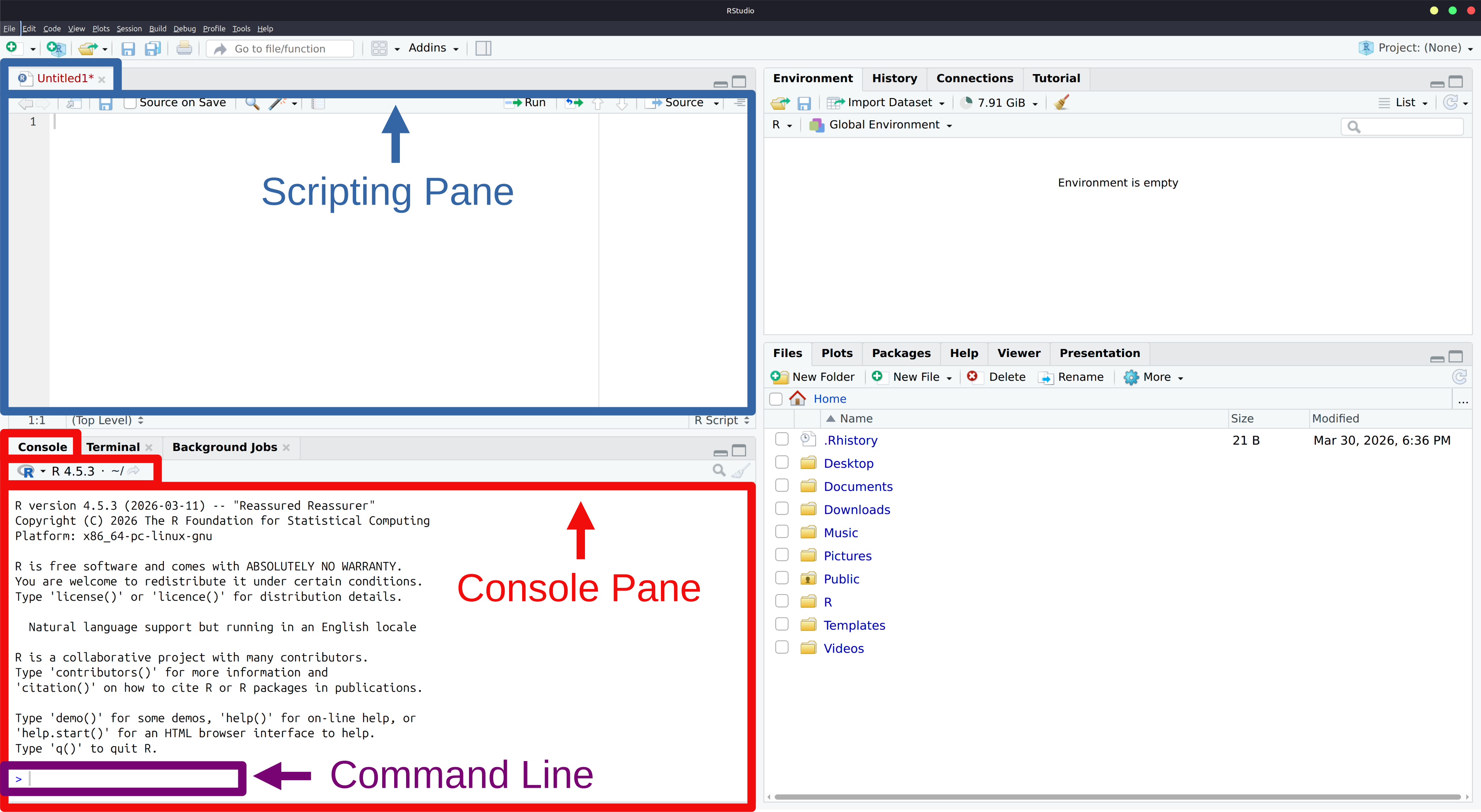
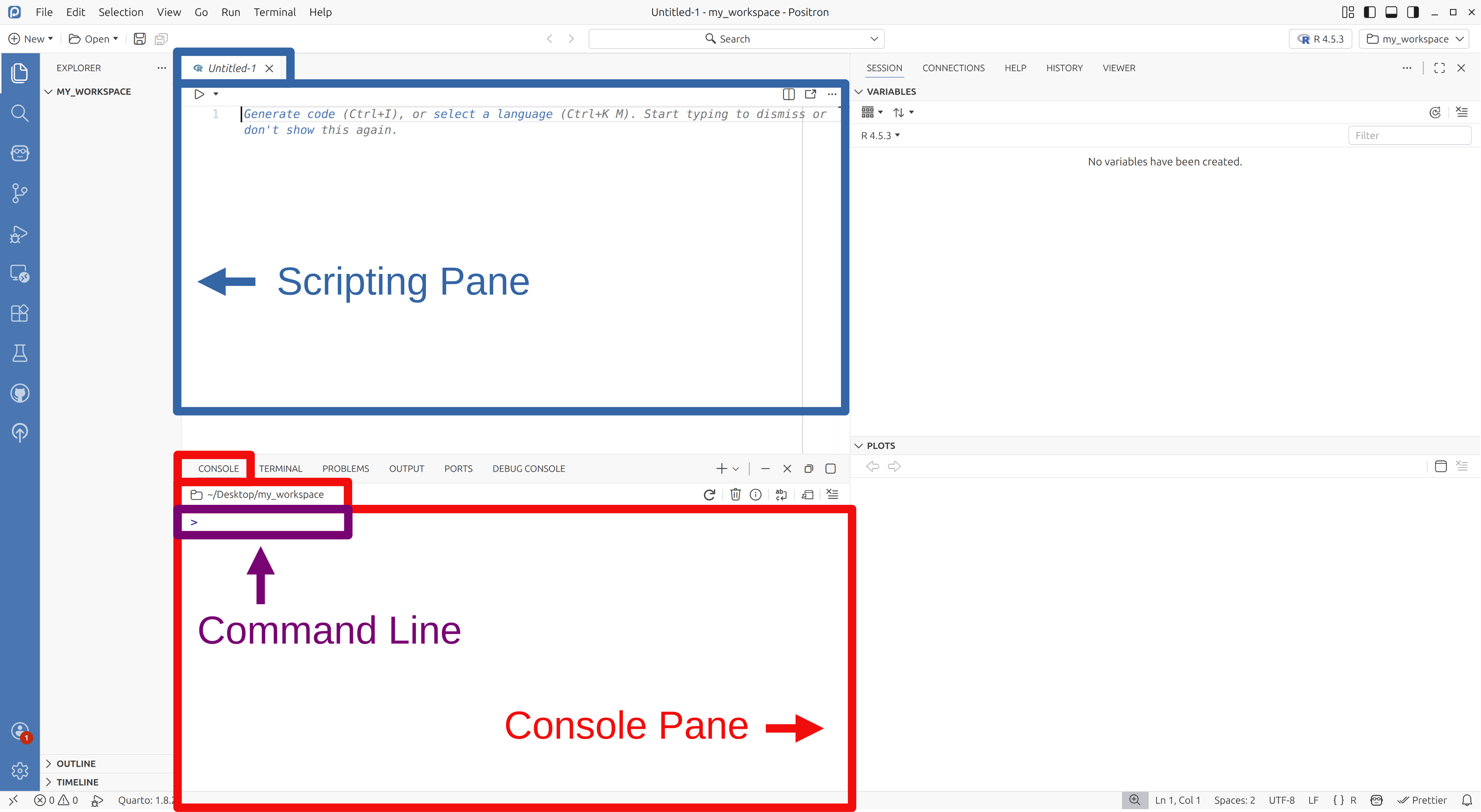
The console pane functions as a terminal for the R language specifically.1 Though, to distinguish it from your operating system’s main terminal it is labelled “console.”
Within the console pane, you should see a \(>\). This symbol denotes the command line’s prompt. In other words, it denotes the space in which you type commands, using R code, to your computer (this is the section highlighted in purple in Figure 3.1). The term “code” here is just a shorthand way of referring to “computer code” which is a more modern way of expressing the fact that we are typing commands using a programming language. The presence of \(>\) indicates that the computer is awaiting your command.
If you type 1 + 1 on the command line and then press “enter/return” on your keyboard, you should see a 2 display as an output almost instantaneously beneath it. In this case the expression 1 + 1 is a line of R code. Pressing enter/return, runs (or executes) this R code. The 2 is the computer’s resulting output.”
Input:
1 + 1Output:
If you close RStudio or Positron, you will find that any history of this calculation is gone when you re-open the environment. Consequently, typing commands into the console offers us a quick way to perform simple tasks that we are not necessarily concerned with preserving. However, in most cases we will be typing R code that we do want to preserve, run, edit, and add to at later date. This is where the concept of a script becomes important.
3.2 The Scripting Pane
A script is a text document where you can type, run, edit, and save your R code. To create a new script in RStudio, select the File menu in the top left corner, hover over New File, and choose R Script. In Positron, the process is identical except you select R File instead.
Once opened, you can type R code into this new pane and save it in the conventional manner of most word processing applications (i.e., File \(\rightarrow\) Save As). Additionally, this pane permits you to run lines of code selectively or all together. For instance, if you type the following into the script pane …
1 + 1
2 + 2
3 + 3
You can now place your cursor at a line of your choosing and run that line individually. To do this in RStudio or Positron simply hold down the Control key on your keyboard and press Enter/Return. If you highlight all the lines of code, or just a subset of them, you can then run that highlighted section in a similar manner.
3.3 Keyboard Shortcuts
It is at this juncture that a noteworthy feature of programming environments be mentioned; specifically, keyboard shortcuts (also called “hotkeys”). All robust programming environments equip users with the ability to perform virtually any non-typing task directly from the keyboard, increasing efficiency and comfort.
For instance, if you are using the Windows operating system, holding down the “control” key and pressing the “s” key will save your script file (Ctrl + S). Learning the shortcuts for frequently used features, such as selecting and running lines of code, will make the process of writing code considerably more time efficient and effortless. In theory, a good programmer - using a competently developed coding environment - should never require the use of a mouse.
RStudio and Positron both offer a wide range of keyboard shortcuts that can be customized to user preferences. In RStudio, selecting Help \(\rightarrow\) Keyboard Shortcuts Help will display a list of existing shortcuts that users can avail themselves of. The same can be done in Positron by selecting File \(\rightarrow\) Preferences \(\rightarrow\) Keyboard Shortcuts.
Please note, it is not being suggested that you go out of your way to memorize all of these at once. The simple act of trying to use them consistently will be sufficient to learn them in an effortless manner. At the outset, it is to your advantage to merely select a few and attempt to use them consistently while you code. A few of the most useful ones are listed in Table 3.1. Many of these are not even exclusive to RStudio or Positron, but are just standard shortcuts in most operating systems.2
| Description | Windows/Linux | Macintosh |
|---|---|---|
| Run current line/section | Ctrl + Enter | Cmd + Return |
| Clear Console | Ctrl + L | Ctrl + L |
| Move to the beginning of a line | Home | Cmd + Left |
| Move to the end of a line | End | Cmd + Right |
| Move the cursor one word/block at a time | Ctrl + Left or Right | Option + Left or Right |
| Highlight all | Ctrl + A | Cmd + A |
| Highlight sections | Shift + Up, Down, Left, or Right | Shift + Up, Down, Left, or Right |
| Move cursor to script window | Ctrl + 1 | Ctrl + 1 |
| Move cursor to console window | Ctrl + 2 | Ctrl + 2 |
Type the <- operator |
Alt + - (minus) | Option + - (minus) |
Important
When utilizing the keyboard shortcuts mentioned in Section 3.3, it is worth remembering that standard QWERTY-style keyboards are symmetrically designed. Modifier keys like the shift key, control key, and alt key are located on both the left and right side of the board.3 This is not by accident and many people - even those who have grown up with unprecedented access to computers and the internet - have never learned to appreciate the utility of this layout or use it appropriately.
As an example, to type capital letters you should always depress the shift key on the opposite side of the keyboard to the letter. So, if you desired to type the capital letter Q, you would depress the right shift key with your right hand, and type Q with your left hand. A similar logic applies to the other modifier keys. As another example, to use the keyboard shortcut in row 9 of Table 3.1, you would depress the right control key (with your right hand) and use your left hand to press the 2 key. You should not be trying to press both keys with a single hand. Such advice might seem obvious but, given the sheer number of people who contort their wrists and fingers in grotesquely strange and painful ways, it is clearly far from being so.
3.4 How to Code Using R: Some Advice to Novice Programmers
With the formalities of installation, console, and scripting window behind us, we can now start learning to write (i.e., code) in R. But before we dive in, some advice for novice programmers is in order.
You do not need to memorize anything in this section or any section of this text. R is a language, and like any language, consistent use will lead to natural, effortless memorization over time. To help accelerate this process, here are some basic recommendations:
- Type all code yourself. Resist the urge to copy and paste. The physical act of typing reinforces learning.
- Run every example in the textbook and try to reproduce the same results.
- If you do not know how to do some particular thing, then look up how to do it each time you need to do it. Memorization will happen effortlessly over time.
- Stay organized. This applies to both the code you write and the files you save.
- Commit to using R for all your statistics from now on. Immersion is the fastest path to fluency.
Everything discussed here is designed to acquaint you with the R language so that when you encounter R code, you will not be overwhelmed or intimidated. As you progress through the book, you will learn more advanced concepts and see much of this material revisited and re-explained in new contexts. Your goal in this chapter is not to become an R expert, it is to develop an intuitive grasp of R’s underlying syntax and logic.
3.5 Basic Arithmetic
At its core R is really nothing more than a powerful calculator, and we can use it as such. R can be used to add (\(+\)), subtract (\(-\)), multiply (\(\times\)), and divide (\(\div\)).
666 + 13
13 - 666
9 * 27
666 / 9
[1] 679
[1] -653
[1] 243
[1] 74Exponents can be incorporated as well by using the \(^\wedge\) (“caret”), symbol. For instance, the expression \(9^3\) can be written as …
9^3[1] 729R will also follow the ritualistic order of operations when dealing with more complex expressions. To illustrate, consider the mathematical statement \(8\div2(2+2)\). Some people mistakenly believe that this expression is equal to \(1\), some believe it is equal to \(4\), and others believe that it is improperly written and there is no solution. In fact, it is equal to \(16\). As many will no doubt have learned in their primary education, according to order of operations (BEDMAS4), the order in which you divide and multiply inside the equation is not fixed, sometimes you divide first and sometimes you multiply first. However, what most people never learn is that the order you use is not up to you. You must always calculate from left to right when making a choice between multiplication and division. The same rule applies to addition and subtraction.
8/2*(2+2)[1] 16If we re-write the equation to be \(8\div(2+2)2\), you will see a corresponding change in the computer’s output.
8/(2+2)*2[1] 4R also has the ability to perform Euclidean Division, which many may recall from their long suffering days in primary education days as simply “division with a remainder.” For instance, consider \(11 \div 2\). Conventionally, you would want and expect an answer of \(5.5\), and R will produce that.
11/2[1] 5.5However, if we want to see the result expressed as a quotient and remainder (i.e., if we want to use Euclidean Division), we could obtain the quotient by typing …
11 %/% 2[1] 5To obtain the remainder we type…
11 %% 2[1] 1Thus, \(11\) can be split into \(2\) groups of \(5\), with \(1\) left over. More technically, the %% is what is known as the modulo operator and the remainder value of 1 that results from 11 %% 2 is known as the modulus.
Other, more complex, arithmetic operations are available in the R language; however, most of them will require the use of specialized lines of code called functions, which are discussed later.
Given that we are on the topic of basic arithmetic, it is perhaps worth considering what happens when you “break the rules” of basic arithmetic. Suppose we divide a positive and negative value by zero, what will happen?
1/0[1] Inf-1/0[1] -InfYou can see that R produces a result of Inf and -Inf which is an abbreviated way of referring to infinity (\(\infty\)) in the positive and negative directions respectively.5
What happens if you take the square root of a negative number?6
(-4)^(1/2)[1] NaNThe abbreviation NaN here stands for not a number, and is a fairly sensible output given that the square root of a negative number does not exist as a real number (it only exists in your imagination).
Finally, since its use crops up from time to time, it can be handy to know that R comes with the number \(\pi\) stored as a constant. To use it, you need only type pi.7
pi[1] 3.1415933.6 Scientific Notation
On occasion values will be either excessively large or excessively small. In such cases R will often display the values using what is referred to as scientific notation. For instance, dividing the number \(2\) by \(100000\) will result in scientific notation being employed:
2 / 100000[1] 2e-05Notice the e-05 in the output. This is how you know R is presenting a number using scientific notation. To interpret this in a conventional manner, imagine there is a decimal point after the \(2\), like so: 2.0e-05. Then just move that decimal point five digits to the left. In other words, 2e-05 is the same as writing 0.00002. More formally, numbers written in scientific notation are always expressed as decimal value from 1 up to (but not including) \(10\), multiplied by a power of \(10\). Thus, when R outputs 2e-05, we interpret that as \(2 \times 10^{-5}\).
If, by contrast, the output were showing e+05, then you would move the decimal five digits to the right. For example, 2e+5 is the same as writing 200000. Notice there are five \(0\)s; this is because, mathematically, 2e+5 means \(2 \times 10^5\)
Remember that positive powers move the decimal right (in the positive direction), and negative powers move the decimal left (in the negative direction).
3.7 Commenting Out Lines
In the course of writing R code, there will be occasions where you would like to run a script you have typed up, but not necessarily run every single line on that script. There might be certain lines that you would, at least tentatively, like to keep for one reason or another but not necessarily run. You can accomplish this by “commenting out” your code. If you type a # symbol, any code that follows that symbol and is on the same line as that symbol will not be run.
1 + 5
# 2 + 4
3 + 3
1 + 2 + 3 # + 4 + 5
[1] 6
[1] 6
[1] 6This process is phrased “commenting out” because using the # is also frequently employed to write short helpful comments to yourself and other readers about your R script.
3.8 Creating Objects
A central feature of R is its ability to call objects in memory. For instance, we can define an object name, x, and have that name represent a number by typing a little arrow, <-, and following it with a value such as \(1\).
x <- 1You will find that running this line of code produces no corresponding output. However, if we now run x by itself the computer will display an output of \(1\).
x[1] 1If you look into how R actually stores what we have done in memory, the “object” in memory is the number \(1\). x is merely a name we are assigning to that object. However, a lot of R users are under the impression that the reverse is true - i.e., that we have in some sense created an object called x and stored something inside of it, but that is not actually the case. x is just a name binded to the object \(1\), and this object \(1\) is located somewhere inside your computer’s memory. Admittedly, unless you are doing some seriously advanced R programming, this is a distinction that will not matter to most R users, but it is important because it means that if you do something like this . . .
x <- 1
y <- 1
x and y are technically different objects in the computer’s memory. However, if we did this ….
y <- xthey now represent the same object in memory. Moreover, altering one does not affect the other and just ends up creating two separate objects in memory. E.g. …
x <- x + 1
x
y
[1] 2
[1] 1To see a complete list of objects presently loaded in memory have a look at the Environment window pane in R studio and the Variables pane in Positron.
3.8.1 Creating Objects (again)
To assign the names x and y we typed an arrow <-. However, we could have assigned the names using an equal sign = instead.
y = x + 4
y
[1] 6Both <- and =, in the manner we are using them here, are what are referred to as assignment operators in that, they are used to perform the operation of assigning a name to an object. For most use cases, there is no practical difference between the two; except insofar as the arrow can be swapped around to assign values to objects like so.
10 -> z
z
[1] 10The existence of both = and <- as assignment operators raises an obvious question: which is better to use? This is a question for which there are strong opinions. While code written using = tends to have an intuitive appeal and requires one less key to press, the <- has greater functionality and is generally preferred by R’s anointed high council (the overseers of Tidyverse) for that reason. If you opt to use <-, it is worth noting that RStudio and Positron contain a keyboard shortcut that offers a more ergonomic means of typing <- by pressing the alt key followed by a minus (-) sign.
NoteComparing Assignment Operators:
<- vs. =
Advanced Topic - New programmers should skip this section.
The original assignment operator of the S programming language was <-. The use of = to assign names to objects was a more recent development in S’s history. This was doubtlessly motivated by 1) the intuitive appeal of = (you are setting something equal to something else), 2) its cleaner look, 3) its correspondence with other modern programming languages, and 4) the basic fact that it requires one less keystroke. It also has the added benefit of not resulting in confusion when dealing with inequalities. For instance, something like x<-1 could be read as either assigning the name x to the object \(1\), or it could be evaluating whether \(x\) is less than \(-1\). As written here, the statement will result in the former unless appropriate spacing is applied; i.e., x < -1.
Despite the obvious benefits of using =, much of R’s core user-base favours <-. To understand why, it is helpful to know that, prior to its use as an assignment operator, the = was used to designate values to arguments inside a function and, to this day, it still serves this purpose. Consequently, when it was granted the coveted position of “assignment operator” it now had dual syntactic roles within the language but with a particular limitation: You cannot use = to both assign a value to a function’s argument and create a variable simultaneously. With <-, you can.
The Core Difference
Consider calculating the mean of the numbers one through five. Using = to set the argument works but creates no new variable:
mean(x = 1:5)[1] 3xError:
! object 'x' not foundUsing <- both sets the argument and stores the values:
mean(x <- 1:5)[1] 3x[1] 1 2 3 4 5The Uber-Assignment operator: <<-
The <- also has an advantage in that a simple variant of it, <<-, allows you to create variables within your own custom-made functions that are executable outside the scope of that function. Admittedly, this is a more advanced usage than readers of this text are likely to need, but it is an useful feature to know about as skills with R develop.
As a basic illustration, suppose we created a function, rational_pi(), that displays \(\pi\) to the nearest integer, \(3\), like so…
rational_pi = function() {
  rat_pi <- 3
  return(rat_pi)
}rational_pi() # Returns 3[1] 3rat_pi # ErrorError:
! object 'rat_pi' not foundAt face value this is odd behaviour because, to be able to run the line return(rat_pi), the object rat_pi must have been stored at some point. And it was stored, but only within the scope of the function. To make rat_pi available outside the function’s scope, we can employ <<- when we define the function:
rational_pi = function() {
  rat_pi <<- 3
  return(rat_pi)
}

rational_pi()
rat_pi
[1] 3
[1] 3Now we have a “rational” version of \(\pi\) stored as rat_pi. However, one other intriguing feature of <<- needs to be mentioned in this context: <<- only assigns a value within the function’s scope, if the object you are creating does not already exist inside the function. However, the value will still get assigned globally (i.e., outside of the function’s scope). This is easiest to comprehend with a simple example:
rational_pi <- function() {
  rat_pi <- 666   # Local assignment
  rat_pi <<- 3    # Global assignment only
  return(rat_pi)  # Returns the local value
}

rational_pi()  # Returns 666 (local value)
rat_pi         # Returns 3 (global value)
[1] 666
[1] 3Additional Advantages of <-
The <- operator offers two other minor advantages: reversibility (you can write -> and ->> to assign rightward) and consistency with R’s documentation, where most code examples use<-. For many R users, this familiarity makes code easier to parse at a glance.
3.9 R Workspaces
If you are using RStudio or the base R GUI that comes with Windows and macOS, you may notice a prompt when closing the program: “Save workspace image?” To understand what this means, it is helpful to first know that as you create different objects in R, those objects are stored in your computer’s memory in what is called the “global environment”. You can see a list of these objects in RStudio’s Environment pane, Positron’s Variables pane, or by running ls().
For example, if you create and run a R script with the following variables:
x <- 1
y <- 2
z <- 3
You can see all of these in your global environment by running:
ls()[1] "x" "y" "z"A workspace is a file (with the extension .RData) that preserves everything in your current global environment. The reason you might want to save a workspace file is because, if you close RStudio without saving the workspace (give it a try), the next time you launch RStudio and try to use one of these variables you will just get an error saying:
xError:
! object 'x' not foundTo get the variable back, you need to re-run your R script so the objects are rebuilt in memory.
If, by contrast, you had saved the workspace when you closed RStudio, and loaded it when you re-launched RStudio (RStudio usually does this automatically), you can run these variables without having to re-run your R script.
Admittedly, this sounds really convienient at face value, but most R users agree that the best practice is to NOT save a workspace image, despite it being the default behaviour of RStudio and there are a few reasons why:
- You might accidentally create objects in the console or delete code from your script while the object remains in your workspace. Consequently, if you or someone else tries to run your script with a fresh environment, it may fail or produce incorrect results because of this.
- Workspace files can become quite large depending on your data, making them slow to load and difficult to store or transfer. By contrast, an R script (.R file) is just a plain-text document and remains small.
- Unless you are doing extremely intensive computations, re-running scripts is fast enough that workspaces are not necessary with modern computers.
With all that in mind, it is reccommended that RStudio users disable the workspace saving prompt. To do this, select Tools from the global menu at the top of RStudio, then choose Global Options. This will cause a window to appear with various settings you can adjust. In the R General section under Workspace, deselect the box “Restore .RData into workspace at startup:” and also (right beneath that) change the drop down menu for “save workspace to .RData on exit:” to say “Never”.
If you use Positron, it’s already configured not to save workspaces, so no changes are needed.
WarningTwo versions of the term “Workspace”
Rather annoyingly, the term “workspace” also has a second meaning in Positron. This meaning will be covered in detail later (see Section 3.22). Just know that, to easily distinguish between them, this book will use the phrase “R Workspace” and “Positron Workspace” respectively.
3.10 Object Modes
Thus far all of the objects we have created have been numeric objects; though, we can avail ourselves of other types. For instance, another common object is the character object which gets defined using quotation marks on each end of the value.
x <- "SPAM"
x
[1] "SPAM"Both single or double quotation marks can be used to define a character object. For instance, running …
y <- 'SPAM'
y
[1] "SPAM"works just fine, but if you were to mix and match the two types of quotation marks (e.g., try to run y <- "SPAM'), you will find that no actual output is produced, and the console just displays the code you tried to run with a small + appended to it. The + indicates that the line of code is incomplete and more is expected before an output can be returned. If this happens in RStudio, you need only press the escape key esc with your cursor inside the console window. In Positron press Ctrl + c.
A core point about character objects, which will probably seem obvious, is that you cannot perform standard mathematical operations on them.
y * 5Error in `y * 5`:
! non-numeric argument to binary operatorAnother type of object is what is known as a logical object. This is an object that contains a value of TRUE or FALSE and is often referred to as a boolean object.
x <- TRUE
y <- FALSE
x
[1] TRUEy[1] FALSEThe values TRUE and FALSE must be typed completely in uppercase without quotations for R to recognize them as a logical object. Alternatively, R does permit a shorthand version of each. Instead of typing TRUE and FALSE, you can type T and F respectively. Though, for ease of reading, using this shorthand version is not advised.
Thus far, we have demonstrated three basic categories of object: numeric, character, and logical. R refers to these various categories as modes,8 and as you progress with R, both in this book and more generally, you will encounter other object modes.
3.11 Naming Objects
Often we will run into circumstances where other people are required to read, run, and modify the code we write. Still other times, we may need to look at, and make sense of, code we have written in the past and largely forgotten. These considerations make it of the utmost importance that all of the code we write is intelligible to other people and our future selves. Among the best way to achieve this is by naming objects appropriately. Ideally, the name of an object should be concise and descriptive. Generally, you can name objects almost anything you like, as long as the name begins with a letter, contains no spaces, avoids special characters (except underscores _), and does not use any of R’s reserved words such as TRUE, Inf, NaN, function, etc.
Given that spaces are not permitted in the naming of objects, programmers have developed certain conventions to promote readability. One such convention is snake case, which separates lowercase lettered words with an underscore: snake_case <- 1.
Another, referred to as camel case, denotes separate words by capitalizing the first letter of each new word: camelCase <- 2
There is also period case: period.case <- 3.
There is random case (Wickham et al. 2023): Ra.nD0M_CAs.e <- 4
Finally, there is of course angry case for those moments when you need to communicate your frustration with coding: ANGRYCASE <- 5
Apart from the last two, R programmers tend to use all of these with seeming abandon. It is worth noting that different style guides for R have been developed and altered over the years with varying degrees of adoption. Presently there is no consensus on which style-guide should act in an official capacity for R; however, the most popular, and widely respected, is the Tidyverse Style Guide9 (https://style.tidyverse.org) which advocates the strict and concise use of snake_case only.
When it comes to naming objects, all of the rules just laid out only apply to what are referred to as syntactic names; however, if villainy is more your style, you can gleefully ignore all of those rules and conjure up what are called non-syntactic names by simply enclosing the name within backticks.
`420 * 69` <- "PARTY TIME!"
`The devil made me do it!` <- "Hail Satan"
3.12 Vectors
It is not the case that an object need store only a single value, as we have been doing above. Particularly when conducting statistical analyses, you are almost always working with variables that contain more than one value (i.e. multiple observations). In view of this, R objects can store as many values as you require. For instance, if we want x to be equal to the numbers 1 through 5, we need only type:
x <- c(1, 2, 3, 4, 5)
x
[1] 1 2 3 4 5The lower case c is short for combine. By combining the numbers \(1\) through \(5\) in this way we have created what is technically known as a vector.10 We can further use this combine function, c(), to combine vectors with other vectors. In the example below, we create two vectors, x and y, and combine them to create an object called z.
x <- c(1, 2, 3, 4, 5)
y <- c(6, 7, 8, 9, 10)
z <- c(x, y)
z
[1] 1 2 3 4 5 6 7 8 9 10
TipHow to Use Your Colon Effectively
In the previous examples, we used R’s combine function to create a basic set of ascending numbers. The need to generate regular sequences of integers is a common occurrence in data analyses, so R provides users with a convenient means to create them using the colon operator (:).
x <- 1:5
x
[1] 1 2 3 4 5This can also be used in reverse and with negative values.
3:-5[1] 3 2 1 0 -1 -2 -3 -4 -5The concept of a vector is one which will have relevance to people with a fondness of linear and matrix algebra,11 since it amounts to little more than a one-dimensional array/matrix. We can see how R handles vectors for these purposes by simply performing some mathematical operations on them. For instance, if we add a single number to our vector, we can see that R straightforwardly adds that number to each element (i.e. position) in the vector.
x
x + 2
[1] 1 2 3 4 5
[1] 3 4 5 6 7Correspondingly:
x - 2
x * 2
x / 2
x^2
[1] -1 0 1 2 3
[1] 2 4 6 8 10
[1] 0.5 1.0 1.5 2.0 2.5
[1] 1 4 9 16 25A similarly logical process is seen when we perform mathematical operations on two or more vectors of the same size. For instance, adding them together results in the first element of one being added to the first element of the other. The second element of one being added to the second element of the other, and so on.
x <- c(1,2,3,4,5)
y <- c(6,7,8,9,10)

x + y
[1] 7 9 11 13 15However, a curious thing will occur if the vectors have an unequal number of elements greater than 1. Suppose, as an example, one vector has four elements and another has five and we want to add them together. In the process of adding the first element with the first element, and the second element with the second, and so on, R will automatically loop back around to the first element in the shorter vector to complete the calculation; though, it does this only after giving you a warning. Needless to say, you should not be performing any arithmetic on vectors of unequal lengths.
x <- c(1,2,3,4)
y <- c(6,7,8,9,10)
x + y
Warning in x + y: longer object length is not a multiple of shorter object
length[1] 7 9 11 13 11Vectors are also not limited to numbers. They can also contain character values and logical values.
a <- c(1,2,3)
b <- c("BREAD", "SPAM", "BREAD")
c <- c(TRUE, FALSE, FALSE)

a
b
c
[1] 1 2 3
[1] "BREAD" "SPAM" "BREAD"
[1] TRUE FALSE FALSEThough, you cannot mix and match. For instance, if you have a character string amongst a set of numeric values, those numeric values will all be converted to character strings as evidenced by the quotation marks in the output below.12
d <- c(5, "SPAM", 6, 7, 8)
d
[1] "5" "SPAM" "6" "7" "8" If you have logical values amongst a set of numeric values, those logical values will be transformed such that TRUE = 1 and FALSE = 0, making the entire vector numeric.
e <- c(666, TRUE, FALSE)
e
[1] 666 1 0In fact if you have an entire vector of logical values you can treat the TRUE and FALSE values as 1s and 0s respectively. This is a feature of logical vectors that frequently comes in handy.
x <- c(100)
g <- c(TRUE, TRUE, FALSE, FALSE, TRUE)
x + g
[1] 101 101 100 100 101Similar to how R comes with \(\pi\) stored as a constant, it also has constants for a few commonly used character vectors:
LETTERS [1] "A" "B" "C" "D" "E" "F" "G" "H" "I" "J" "K" "L" "M" "N" "O" "P" "Q" "R" "S"
[20] "T" "U" "V" "W" "X" "Y" "Z"letters [1] "a" "b" "c" "d" "e" "f" "g" "h" "i" "j" "k" "l" "m" "n" "o" "p" "q" "r" "s"
[20] "t" "u" "v" "w" "x" "y" "z"month.name [1] "January" "February" "March" "April" "May" "June"
[7] "July" "August" "September" "October" "November" "December" month.abb [1] "Jan" "Feb" "Mar" "Apr" "May" "Jun" "Jul" "Aug" "Sep" "Oct" "Nov" "Dec"Notice in the previous example’s output that the numbers within brackets indicate the position number of a element in the vector. For example, in the vector LETTERS, "T" is located at the 20th position. In the vector month.name, "July" is in the 7th position. Every new line written to the console screen gives the position number of the first element on the line - meaning that the size of your console screen will effect which position numbers get displayed (so you might have different values that what is shown above).
It is not by accident that these positions are demarcated using square brackets. Square brackets serve a special purpose in R. They allow us to subset values by referencing their position in the vector. For instance, if we want to know what the 17th letter of the English alphabet is, we need only type …
LETTERS[17][1] "Q"If we want to list out the first 5 letters we can simply insert a numeric vector…
LETTERS[c(1, 2, 3, 4, 5)]
# or equivalently
LETTERS[1:5]
[1] "A" "B" "C" "D" "E"
[1] "A" "B" "C" "D" "E"By contrast, if we want to list out all of the letters, except the first five (i.e., exclude the first five), we can include a minus sign in front of the combine symbol.
LETTERS[-c(1, 2, 3, 4, 5)]
# or equivalently
LETTERS[-1:-5]
[1] "F" "G" "H" "I" "J" "K" "L" "M" "N" "O" "P" "Q" "R" "S" "T" "U" "V" "W" "X"
[20] "Y" "Z"
[1] "F" "G" "H" "I" "J" "K" "L" "M" "N" "O" "P" "Q" "R" "S" "T" "U" "V" "W" "X"
[20] "Y" "Z"The use of vectors inside the indexing brackets allows us to select any position we want. For instance, if we wanted to examine the 2nd, 3rd, 5th, 7th, 11th, 13th, 17th, 19th, and 23rd numbers (all prime numbers), we can create a vector of those values and simply insert it into the index.
primes <- c(2, 3, 5, 7, 11, 13, 17, 19, 23)
LETTERS[primes]
[1] "B" "C" "E" "G" "K" "M" "Q" "S" "W"Somewhat uniquely, within the R programming language every single basic data object—such as a number, character string, or logical value—is inherently a vector. For example, the number 666 is a vector, the character string "SPAM" is a vector, and the logical value FALSE is also a vector. These are simply vectors with a single element, or a length of 1. As such, all of these can be indexed just like any other vector with a length greater than 1.
666[1]
666[2]
"SPAM"[1]
FALSE[1]
[1] 666
[1] NA
[1] "SPAM"
[1] FALSENotice in the second line, when 666 was indexed at position 2, R returned NA because no value exists at that position. The moral of the story is that, when the combine function,c(), is used, you are not creating a vector, but rather combining vectors.
3.13 Operators And Comparison Statements
Symbols in R such as <-, +, -, and so on are referred to as operators because they are used to perform “operations” such as assigning a name to an object, adding numbers together, etc. Table Table 3.2 shows a list of some common operators in R that we have seen before and some new ones called relational operator. These are operators that evaluate a comparison of some kind. For instance, you can evaluate whether one value is greater than or less than another value.
3 > pi
3 < pi
[1] FALSE
[1] TRUEIn the above example, the statement “three is greater than \(\pi\)”, is a false statement. By contrast, the statement “three is less than \(\pi\)”, is a true statement.
| Type | Operator | Description |
|---|---|---|
| Assignment | x <- value |
Assign a value to a name. |
value -> x |
Assign a value to a name (rightward). | |
x = value |
Assign a value to a name. | |
| Arithmetic | x + y |
Addition |
x - y |
Subtraction | |
x * y |
Multiplication | |
x / y |
Division | |
x^y |
Exponentiation | |
x %% y |
Modulo (remainder after division) | |
x %/% y |
Integer division (quotient without remainder) | |
| Relational | x < y |
Less than |
x > y |
Greater than | |
x <= y |
Less than or equal to | |
x >= y |
Greater than or equal to | |
x == y |
Equal to | |
x != y |
Not equal to |
In a similar fashion, you can also evaluate whether a value is greater than or equal to some other value or less than OR equal to some value. For example:
pi >= pi
pi <= pi[1] TRUE
[1] TRUEYou can also evaluate whether two values are equivalent or not equivalent, by using the symbols == and != respectively.
pi == pi # testing if equivalent
pi == (22/7)
pi != (22/7) # testing if NOT (!) equivalent[1] TRUE
[1] FALSE
[1] TRUE3.14 Functions
In conventional mathematics a function is a way of relating an input to an output (Pierce 2022). Typically this is notated as
\[ f(\text{input}) = \text{output} \tag{3.1}\]
When you place something inside the left parentheses, there is a corresponding output. The use of \(f\) here to denote the function is just a formality mathematicians have adopted. A function can be named or symbolized with anything.
As an example of a function’s use, we could create one that outputs the square root of a number.
\[ f(x) = \sqrt{x} \tag{3.2}\]
In this case, \(x\) is just acting as a place holder; thus, swapping the \(x\) inside of \(f()\) with a real number will give us a corresponding output by taking the square root of that number. For example, if we insert the number 25 into the function:
\[ \begin{align} f(25) &= \sqrt{25} \\ &= 5 \end{align} \tag{3.3}\]
Functions in R work identically to this. For instance, R has a function for finding the square root of a number, except instead of naming the function \(f(x)\), it names the function sqrt(x).
sqrt(25)[1] 5And, rather conveniently, R will also store the output of a function as an object if you ask it to.
x <- sqrt(25)
x
[1] 5As you might expect, given its lineage as a tool for data analysis, R has many such functions. Examples of some of the more common, self-explanatory ones can be seen below. For each we will insert a vector containing the values one through five.13
x <- c(1, 2, 3, 4, 5)# Calculating the sum of all the values:
sum(x)[1] 15#Calculating the product of all the values:
prod(x)[1] 120# Calculating the minimum and maximum of all the values:
min(x)
max(x)[1] 1
[1] 5# Calculating the length (i.e., number of elements) of a vector:
length(x)[1] 5# Calculating the mean of all the values:
mean(x)[1] 3# Calculating the median of all the values:
median(x)[1] 3Functions are not limited to just mathematical processes either. For instance, R has a function to tell us what an object’s mode is, thus allowing us to determine if the vector consists of numeric, character, or logical values.14
mode(x)[1] "numeric"3.15 Arguments
The utility of functions in R actually extends far beyond this basic usage because most functions are easily modified through the use of arguments. An “argument” is simply a parameter that allows you to customize how a function operates. A simple example of this is the round() function. This is used to round numbers to a specified decimal place. For instance, if we have a vector that contains both the number \(\pi\) and the \(\sqrt{2}\)
x <- c(pi, sqrt(2))
x
[1] 3.141593 1.414214We can use the round() function and its digits argument to round these to 2 digits.
round(x, digits = 2)[1] 3.14 1.41Alternatively, we could round to the nearest integer:
round(x, digits = 0)[1] 3 1Critically, in the above two examples, we have specified the digits argument using an = sign. Generally speaking, this is the best practice and original purpose of = because, while you are permitted to use the assignment operator <- in place of this, doing so will store an object called digits unnecessarily, wasting your computers resources and cluttering R’s working environment.
The round() function only takes one argument but many functions take multiple arguments. A good example of this is the sequence function, seq(), which generates regular number sequences. For instance, if you wanted to generate a sequence from 0 to 100, counting by 2’s, there are three arguments you will need to set: from, to, and by:
seq(from = 0, to = 100, by = 2) [1] 0 2 4 6 8 10 12 14 16 18 20 22 24 26 28 30 32 34 36
[20] 38 40 42 44 46 48 50 52 54 56 58 60 62 64 66 68 70 72 74
[39] 76 78 80 82 84 86 88 90 92 94 96 98 100The sequence function is also illustrative of another feature of functions, often they will have mutually exclusive arguments. Instead of using the by argument, we could have used the length.out argument to specify how many values we want in our sequence.
seq(from = 0, to = 100, length.out = 6)[1] 0 20 40 60 80 100To save yourself some effort in typing out functions and their corresponding arguments, you can actually just provide the values, without the argument name and equal sign, provided you specify the arguments in the correct order.
seq(0, 100, 2) [1] 0 2 4 6 8 10 12 14 16 18 20 22 24 26 28 30 32 34 36
[20] 38 40 42 44 46 48 50 52 54 56 58 60 62 64 66 68 70 72 74
[39] 76 78 80 82 84 86 88 90 92 94 96 98 100To determine the correct ordering of arguments you will need to consult the function’s R documentation.
3.16 R (Help) Documentation
R includes a vast array of built-in functions, some of which perform highly complex tasks. Consequently, when reading R code, you will often encounter functions whose purpose and usage seem mysterious. To demystify these functions, it is often necessary to consult R’s help documentation. Each function in R comes with corresponding documentation that outlines its purpose, explains its arguments, and provides references. While R’s documentation can often be challenging to interpret for novice users, it should always be your first resource when you are unsure about how a function works or what it does. Only after consulting the help documentation should you turn to additional resources, such as internet searches or forums.
To access the documentation for any function in R, simply precede the function name with a question mark and run it in the R console. For example, running ?mean will bring up the documentation for the arithmetic mean function.
NoteR Documentation for
mean()
?meanmean {base}
Arithmetic Mean
Description:
Generic function for the (trimmed) arithmetic mean.
Usage:
mean(x, ...)

## Default S3 method:
mean(x, trim = 0, na.rm = FALSE, ...)
Arguments:
x: an R object. Currently there are methods for numeric/logical vectors and date, date-time and time interval objects. Complex vectors are allowed for ‘trim = 0’, only.
trim: the fraction (0 to 0.5) of observations to be trimmed from each end of ‘x’ before the mean is computed. Values of trim outside that range are taken as the nearest endpoint.
na.rm: a logical evaluating to ‘TRUE’ or ‘FALSE’ indicating whether ‘NA’ values should be stripped before the computation proceeds.
... further arguments passed to or from other methods.
Value:
If trim is zero (the default), the arithmetic mean of the values in x is computed, as a numeric or complex vector of length one. If ‘x’ is not logical (coerced to numeric), numeric (including integer) or complex, NA_real_ is returned, with a warning.
If trim is non-zero, a symmetrically trimmed mean is computed with a fraction of trim observations deleted from each end before the mean is computed.
References:
Becker, R. A., Chambers, J. M. and Wilks, A. R. (1988) The New S Language. Wadsworth & Brooks/Cole.
See Also:
weighted.mean, mean.POSIXct, colMeans for row and column means.
Examples:
x <- c(0:10, 50)
xm <- mean(x)
c(xm, mean(x, trim = 0.10))
[1] 8.75 5.50All R documentation follows a consistent structure, designed to provide users with a comprehensive understanding of each function. At the top, you will find the name of the function along with the name of the package it belongs to, enclosed in braces. For example, consulting the documentation for the mean() function displays mean {base} at the top, indicating that this function is part of base R. Similarly, for other common functions like sd(), you might see `{stats}’ listed. The stats package, included with R, contains functions for statistical calculations and random number generation, provided by the R Core Team alongside base R functions.
Beneath the function name and package, you will find a brief Description section outlining the function’s purpose. This is typically followed by a Usage section, which includes a code block demonstrating how the function is used and detailing its arguments. For instance, documentation for the mean() function includes the following usage:
mean(x, ...)

## Default S3 method:
mean(x, trim = 0, na.rm = FALSE, ...)
The topmost line of the code block, mean(x, ...), represents the minimal working example for the function. This indicates that, at a minimum, the argument x must be provided for the function to work. The Arguments section below the code block provides further details about x. Specifically, it states that x is an “an R object. Currently there are methods for numeric/logical vectors and date, date-time and time interval objects. …” In simpler terms, this is saying that x should be a numeric or logical object and not, for instance, a character object. For example:
nums <- 0:666
mean(x = nums)
[1] 333In this case, nums, a numeric vector, is the R object provided to the argument x.
Beneath the minimal working example, in the Usage block, is a line of code displaying the various additional arguments the function has: trim and na.rm. These arguments are optional because they come with default values, meaning they do not need to be explicitly set by the user, unlike the required argument x.
Further down, the documentation includes a Value section, which describes the output of the function based on the arguments provided and the data types used. Finally, the documentation concludes with additional details references, supplemental links, and practical examples to demonstrate the function’s usage in real-world scenarios.
3.17 Missing Values
A common hurdle in data analysis are missing values. Values can be missing for any number of reasons; perhaps a participant never showed up for a research session, perhaps an lab animal died, perhaps there was a equipment malfunction, perhaps someone recorded something incorrectly, or maybe you just ran out of time and money. The R language denotes missing values using NA, which stands for “not available.” In many instances, numerical calculations on a NA value will simply result in another NA value.
5 + NA[1] NAIntuitively, this behaviour makes a fair amount of sense to most people. We do not know what NA is or should be, so the expression 5 + NA cannot be evaluated. And R, quite logically, extends this principle to functions:
x <- c(710, 633, 786, NA, 642)
mean(x)
[1] NAHowever, in this latter case, the logic which seemed so obvious initially seems less so now. Consider that these values might be observations from an experiment. Many researchers will reflexively ignore the NA and compute the mean of these values as readily as a rat devours a food pellet, and it is to R’s credit that it actually prohibits its users from indulging so recklessly.
How missing values should be handled is a matter of great importance and statisticians often disagree on what the best practice should be in any given case. In a situation like this, most people would simply ignore the missing element and treat the vector as containing only four values. However, most data sets are not this simplistic. That NA might be paired with collected observations of other variables. That is a situation where you might, for the purpose of conducting a certain analysis, require a number to be in that fourth spot. What do you do then? Do you replace NA with the mean of the four values, do you replace it with the median, or do you do something else?
There is no one-size-fits-all answer here; however, in those instances where simply ignoring the NA is the sensible course of action, many base R functions allow you to specify an additional logical argument, na.rm, that will remove any NA values prior to calculation. You can see this by simply accessing the R documentation (e.g., ?mean). By default the argument is set to FALSE and setting na.rm = TRUE will remove the NA values accordingly.
mean(x, na.rm = TRUE)[1] 692.75For situations where a function does not have a na.rm argument or equivalent, the function is.na() can be easily employed. This function evaluates whether each element of an R object is missing or not and returns a logical (TRUE or FALSE) value. For example:
x <- c(710, 633, 786, NA, 642)
is.na(x)
[1] FALSE FALSE FALSE TRUE FALSELooking at the output, we can see that the fourth value is missing because it has returned a value of TRUE (i.e., the function has determined that it is a NA value). Combing the behaviour of this function with the indexing feature of vectors (see Section 3.12) and a logical operator called the negation operator (denoted using !), we can easily obtain a version of the vector with missing values excluded.
x[!is.na(x)][1] 710 633 786 642With the negation operator, the expression !is.na(x) can be interpreted as asking, “which values of x are not missing values? This is easily seen by comparing the is.na() function with and without the negation.
is.na(x)
!is.na(x)
[1] FALSE FALSE FALSE TRUE FALSE
[1] TRUE TRUE TRUE FALSE TRUENotice that the ! just provides the logical opposite (i.e., negation) of the original function. Thus, putting all this together, you could write …
mean(x[!is.na(x)])[1] 692.75…in lieu of using or not having a na.rm style argument to remove missing values. To novice users of R, techniques like this may seem cumbersome initially. This is especially the case when you are dealing with so few values and can immediately see what is and is not missing within the data. For instance, noting that the fourth value is missing from x, you could simply create a new vector of the form y <- c(710, 633, 786, 642) and insert that into your functions. However, many (if not most) data sets are too large to “eyeball” and manually rebuild in this way. Automated solutions like those shown with the negation operator are not only necessary to save time, but are also less prone to error.
3.18 Data Frames
While there are situations where a single vector constitutes the only data that needs to be analyzed, it is more often the case that you are working with “sets” of data. That is to say, typically your data consists of observations across a range of different variables. Consequently, for the purposes of organization, it is helpful to keep all of this data stored as a single object. In R, there are a number of ways you could do this. You could store data as a table, a list, or a matrix which are all unique classes of objects R recognizes. However, for most uses cases, a data frame is going to be the preferred method of data storage in R.
In its simplest terms a data frame is simply a spreadsheet, where rows represent observations and columns represent variables. Consider a hypothetical experiment with two groups, a control and experimental group, and 10 observations, one of which is missing for some reason. Visually, the data might look like Table 3.3
| subject | group | value |
|---|---|---|
| 1 | Exp | -0.36 |
| 2 | Cont | 0.28 |
| 3 | Exp | 1.54 |
| 4 | Cont | 0.51 |
| 5 | Exp | -1.28 |
| 6 | Exp | 1.15 |
| 7 | Cont | -2.22 |
| 8 | Exp | -0.51 |
| 9 | Cont | NA |
| 10 | Cont | -1.04 |
We can easily recreate this in R using the data.frame() function. Inside the function, we specify our desired columns as arguments.
df <- data.frame(
  subject = 1:10,
  group = c("Exp", "Cont", "Exp", "Cont", "Exp", "Exp", "Cont", "Exp",
            "Cont", "Cont"),
  value = c(-0.36,  0.28,  1.54,  0.51, -1.28,  1.15, -2.22, -0.51,
            NA, -1.04)
)
df
subject group value
1 1 Exp -0.36
2 2 Cont 0.28
3 3 Exp 1.54
4 4 Cont 0.51
5 5 Exp -1.28
6 6 Exp 1.15
7 7 Cont -2.22
8 8 Exp -0.51
9 9 Cont NA
10 10 Cont -1.04Alternatively, if you have the variables subject, group, and value already stored as individual vectors, you could build your data frame in the following way:
df <- data.frame(subject, group, value)
df
Now, strictly speaking, you would almost never input your data into R in the manner we have done here (i.e., by manually typing in the values). However, the basics of constructing a data frame is an essential, and frequently appealed to, piece of knowledge when working with R.
3.18.1 Critical Features of Data Frames
There are two critical features of data frames that separates them from traditional spreadsheets. The first is that each column needs to consist of a single object mode (e.g., numeric, character, or logical; see Section 3.10). For instance, in the data frame above, the subject column consists only of numeric objects, the group column only consists of character objects and the value column, again, only consists of numeric objects. We can see this by running the following code:
sapply(df, FUN = mode) subject group value
"numeric" "character" "numeric" In this example, the sapply() function has, quite literally, applied the function mode() to each of the columns of our data frame, thereby telling us what each column’s mode is. The argument FUN is just short for “function” and is telling sapply() what function you want to apply to the columns. In this case we are applying the mode() function.
Knowing the mode of a column is very important because columns behave like vectors insofar as trying to mix and match different object types within a single column will potentially change that entire column. As an example, if we had coded …
value = c("-0.36", 0.28, 1.54, 0.51, -1.28, 1.15, -2.22, -0.51, NA, -1.04)
value
[1] "-0.36" "0.28" "1.54" "0.51" "-1.28" "1.15" "-2.22" "-0.51" NA
[10] "-1.04"you will find that every single number in that column automatically becomes a character object even though only the first of the nine elements was typed as a character object. This is going to be very irritating if you want to perform mathematical operations on that column and are unaware that all of its elements have been coerced into character objects (notice that printing the data frame does not show character objects with quotes like vectors do).
The second critical feature of data frames is that each column must contain the same number of elements as every other column. In our example, subject, group, and value all contain 10 elements (the missing value is counted as an element). In most cases, if you try and build a data frame with columns of unequal lengths, R will produce an error message.
df_2 <- data.frame(
  a = 1:4,
  b = 1:3
)
Error in `data.frame()`:
! arguments imply differing number of rows: 4, 3In other cases, if you have an unequal amount of values in your columns and R determines that it can evenly repeat a sequence, R will automatically recycle that sequence.
df_3 <- data.frame(
  a = 1:4,
  b = 1:2
)

df_3
a b
1 1 1
2 2 2
3 3 1
4 4 2Notice in the above example that we assigned four values to the a column and two values to the b column and instead of producing an error, R simply recycled the values in b to fill the empty spots.
3.18.2 Indexing Data Frames
Similar to how vectors can be indexed using square brackets, data frames can also be indexed. Going back to our original data frame (df), suppose we wanted to look at the value found in the fifth row of the third column. This can be easily accomplished in the following way:
df[5, 3][1] -1.28Notice, the number on the left side of the comma (5) refers to the row, and the number on the right side (3) refers to the column. The easy way to remember this is that the numbers in the brackets represent a \(x\) and \(y\) coordinate system, with \(x\)’s being rows, and \(y\)’s being columns.
In the last example we selected a single element of our data frame, but we can select more than one value and more than one column if need be. For instance, we could isolate rows \(1\), \(3\), and \(5\), from columns \(2\), and \(3\) only.
df[c(1, 3, 5), c(2:3)] group value
1 Exp -0.36
3 Exp 1.54
5 Exp -1.28If you wanted to keep all the columns visible while only looking at rows \(1\), \(3\) and \(5\), you need only to leave the left side of the comma blank.
df[c(1, 3, 5), ] subject group value
1 1 Exp -0.36
3 3 Exp 1.54
5 5 Exp -1.28A similar logic applies to rows:
df[ , c(2:3)] group value
1 Exp -0.36
2 Cont 0.28
3 Exp 1.54
4 Cont 0.51
5 Exp -1.28
6 Exp 1.15
7 Cont -2.22
8 Exp -0.51
9 Cont NA
10 Cont -1.043.18.3 Extracting Columns as Vectors
There will also be many circumstances where you need to work with the values of a single column only. For instance, if you want to calculate the mean of the third column value, you can use one of R’s extraction operators, the $, to isolate that column. The following code will isolate the value column and output it as a vector:
df$value [1] -0.36 0.28 1.54 0.51 -1.28 1.15 -2.22 -0.51 NA -1.04You can, therefore, just insert this into the mean() function.
mean(df$value, na.rm = TRUE)[1] -0.2144444Alternatively, instead of using the $ operator, you can use doubled square brackets to specify the column number you want:
df[[3]] [1] -0.36 0.28 1.54 0.51 -1.28 1.15 -2.22 -0.51 NA -1.04Neither method of extracting a column is intrinsically better than the other. It really boils down to whether you prefer to reference your columns by names or numbers. The former is often easier to read at the expense of writing more code, whereas the latter, while harder to discern at a quick glance, requires less writing and can produce, superficially, a tidier looking script.
If you want to extract a column, but still preserve its classification as a data frame instead of dropping it to a vector you can include the argument drop = FALSE inside your indexing brackets. This is useful for situations where you want to preserve the name of the column you have indexed.
df[ , 3, drop = FALSE] value
1 -0.36
2 0.28
3 1.54
4 0.51
5 -1.28
6 1.15
7 -2.22
8 -0.51
9 NA
10 -1.043.18.4 Adding and Removing Columns
Adding new columns to a data frame is very simple. Suppose we wanted to create a column named alpha containing the first 10 letters of the English alphabet.
df$alpha <- letters[1:10]
df
subject group value alpha
1 1 Exp -0.36 a
2 2 Cont 0.28 b
3 3 Exp 1.54 c
4 4 Cont 0.51 d
5 5 Exp -1.28 e
6 6 Exp 1.15 f
7 7 Cont -2.22 g
8 8 Exp -0.51 h
9 9 Cont NA i
10 10 Cont -1.04 jIf we wanted to create a column named new_val that multiplies all the numbers in the value column by \(100\), we can easily do that.
df$new_val <- df$value * 100
df
subject group value alpha new_val
1 1 Exp -0.36 a -36
2 2 Cont 0.28 b 28
3 3 Exp 1.54 c 154
4 4 Cont 0.51 d 51
5 5 Exp -1.28 e -128
6 6 Exp 1.15 f 115
7 7 Cont -2.22 g -222
8 8 Exp -0.51 h -51
9 9 Cont NA i NA
10 10 Cont -1.04 j -104To remove a column, there are a few common options. Assuming you want to remove the alpha (fourth) column, you can just set that column equal to a null value, which just means that something is undefined and therefore does not exist as an object in the R language.
df$alpha <- NULL
df
subject group value new_val
1 1 Exp -0.36 -36
2 2 Cont 0.28 28
3 3 Exp 1.54 154
4 4 Cont 0.51 51
5 5 Exp -1.28 -128
6 6 Exp 1.15 115
7 7 Cont -2.22 -222
8 8 Exp -0.51 -51
9 9 Cont NA NA
10 10 Cont -1.04 -104If you want to remove multiple columns, a quick way is to simply index the columns you do NOT want to keep, negate them using a minus sign (which means you are now technically indexing the ones you DO want to keep). You can then override your data frame object, which in our case is df. To illustrate, we will remove column’s one and four.
df <- df[ , -c(1, 4)]
df
group value
1 Exp -0.36
2 Cont 0.28
3 Exp 1.54
4 Cont 0.51
5 Exp -1.28
6 Exp 1.15
7 Cont -2.22
8 Exp -0.51
9 Cont NA
10 Cont -1.043.18.5 Adding and Removing Rows
To add a row to an existing data frame, the conventional strategy is to use the rbind() function. “rbind” is short for “row bind” and does more or less what it says on the box: it binds (i.e., combines) objects by rows. For instance, if we create a new dataframe that contains a row (or rows) we want to add, we can then use the rbind() function to append it to the original dataframe.
new_row <- data.frame(
  group = "SPAM",
  value = 999
)

df <- rbind(df, new_row)
df
group value
1 Exp -0.36
2 Cont 0.28
3 Exp 1.54
4 Cont 0.51
5 Exp -1.28
6 Exp 1.15
7 Cont -2.22
8 Exp -0.51
9 Cont NA
10 Cont -1.04
11 SPAM 999.00To remove rows (e.g., 9 and 11), you can follow the same basic process that was outlined for removing columns.
df <- df[-c(9, 11), ]
df
group value
1 Exp -0.36
2 Cont 0.28
3 Exp 1.54
4 Cont 0.51
5 Exp -1.28
6 Exp 1.15
7 Cont -2.22
8 Exp -0.51
10 Cont -1.043.18.6 Row and Column Names
Notice in the previous example that, by removing row \(9\) (i.e., the row that contained the NA value), the index numbers on the leftmost side of the data frame’s output become mislabelled. It counts from \(1\) to \(8\), skips \(9\), and goes straight to \(10\). The reason it does this is because those numbers on the left are not actually index values, as you might reasonably assume. They are actually row names and, when the data frame was initially created, the rows were literally named \(1\) through \(10\).
R users tend to be on the fence as to whether this is a useful feature or not.15 It does provide a nice visual confirmation that specific rows have been removed, but also makes future indexing potentially more confusing since the row named \(10\) is actually the \(9\)th row. Thus, its often helpful to rename the rows after you have subset or removed certain values. You can do this using the rownames() function.
rownames(df) <- 1:nrow(df)
df
group value
1 Exp -0.36
2 Cont 0.28
3 Exp 1.54
4 Cont 0.51
5 Exp -1.28
6 Exp 1.15
7 Cont -2.22
8 Exp -0.51
9 Cont -1.04Note that we used the function nrow() to create the sequence of numbers. This function simply counts how many rows are in a data frame.
nrow(df)[1] 9An alternative way of defining the row names would have been to type rownames(df) <- 1:9; however, this is STRONGLY discouraged. The reasons being that, if you are working with a large data frame, you often do not know how many rows there are. Additionally, if some aspect about your data frame changes in the future (maybe because you have updated your data set or indexed different values), the 1:9 is no longer going to be accurate and will produce errors that you may or may not notice, unless you have remembered to change it. Using the code 1:nrow(df) ensures that your row names will always be correct.
Here we have named our rows using numbers, but you can technically name rows anything you want.
rownames(df) <- month.name[1:nrow(df)]
df
group value
January Exp -0.36
February Cont 0.28
March Exp 1.54
April Cont 0.51
May Exp -1.28
June Exp 1.15
July Cont -2.22
August Exp -0.51
September Cont -1.04Generally speaking though, this is not something you should be doing. If you wanted to label each row with a name of the month, you would be better off creating a new column called month, and keeping the row names as ascending integers.
Column names can be renamed in a similar fashion using the colnames() function. Though, R’s syntax does not permit you to name them solely with numeric values, nor are you allowed to include spaces or any type of special characters other than an underscore.
colnames(df) <- c("1st_Col", "2nd_Col")
df
1st_Col 2nd_Col
January Exp -0.36
February Cont 0.28
March Exp 1.54
April Cont 0.51
May Exp -1.28
June Exp 1.15
July Cont -2.22
August Exp -0.51
September Cont -1.04If you do use a number, space, or special character to name your column, it becomes a non-syntactic name (see section Section 3.11) and backticks become necessary to isolate it.
colnames(df) <- c(1, "Col 2")
df
1 Col 2
January Exp -0.36
February Cont 0.28
March Exp 1.54
April Cont 0.51
May Exp -1.28
June Exp 1.15
July Cont -2.22
August Exp -0.51
September Cont -1.04df$1Error in parse(text = input): <text>:1:4: unexpected numeric constant
1: df$1
^df$Col 2Error in parse(text = input): <text>:1:8: unexpected numeric constant
1: df$Col 2
^df$`1`[1] "Exp" "Cont" "Exp" "Cont" "Exp" "Exp" "Cont" "Exp" "Cont"df$`Col 2`[1] -0.36 0.28 1.54 0.51 -1.28 1.15 -2.22 -0.51 -1.043.19 Packages
As a standalone piece of software, R provides an excellent toolbox of functions for most data analysis scenarios. However, R’s true power lies in its extensibility. R users can create custom sets of functions for specific purposes and package these functions with documentation and sample data for others to use. This system of user-contributed packages has made R one of the most versatile statistical computing environments available.
The packages R users make publicly available are downloaded from online repositories (often called “repos”). The Comprehensive R Archive Network (CRAN), discussed in section Section 2.1, is one such repository, another well known one would be GitHub. The CRAN repository is easily the most frequented by R users and is likely to be the only R repository you will ever need. It is special in that the packages it provides are curated by the The R Project for Statistical Computing.
To install a package from the CRAN repository you simply run the function install.packages(" ") with the package name inside the quotation marks. As an example, we shall install the “cowsay” package.
install.packages("cowsay")If you have never previously installed a package, R will likely prompt you to first create a “personal library.” You may see a message similar to this:
Installing package into ‘/usr/local/lib/R/site-library’
(as ‘lib’ is unspecified)
Warning in install.packages("cowsay") :
  'lib = "/usr/local/lib/R/site-library"' is not writable
Would you like to use a personal library instead? (yes/No/cancel)
This message appears because R’s system-wide library location requires administrator privileges. A personal library is a folder in your user directory where you can install packages without special permissions. This is the standard and recommended approach, meaning you can type “yes” and press Enter.
After responding “yes,” you will receive a second prompt asking to create this personal library:
Would you like to create a personal library
‘/home/YourName/R/x86_64-pc-linux-gnu-library/4.5’
to install packages into? (yes/No/cancel)
The exact path and format of these messages varies by operating system and R version. Windows users will see paths like C:/Users/YourName/Documents/R/win-library/4.5, while Mac users will see paths like /Users/YourName/Library/R/x86_64/4.5/library. If this seems confusing, don’t worry, just trust the defaults you see. Directories and file paths will be explained later for those who might be unfamiliar. The important takeaway here is that R is creating a dedicated folder for all your R packages.
Again, type “yes” and press Enter. You should now begin to see a variety of interesting things to occur inside the console window. This is the package installing into the personal library (the collection of packages) stored on your computer. Upon successful completion of the install should be, among other things, a statement reading something to the effect of package 'cowsay' successfully unpacked. What this means is we can now access the various functions contained within the package, but before we do we should install another package called “praise”.
install.packages("praise")In order to access the functions contained in these two packages we need only execute the line library() with the package name inside the parentheses (quotation marks are optional here, though commonly omitted).
library(cowsay)
library(praise)
We can now run the functions say() and praise() in the following way:
say(praise())Try it yourself and see what happens.
3.19.1 Loading vs. Installing
It should be noted that when you close your R environment, you will not have access to these two functions the next time you open R. However, you can easily regain access to them by re-running the library() functions above (meaning these lines should be saved in the scripts you write). You do NOT need to reinstall the packages unless you update to a new major version of R (e.g., from 4.5.x to 4.6.0). It is important to understand the difference between installing a package and loading it. You only need to install a package once (per major R release). However, you need to load it every session. You install a package once (or when updating), but must load it with library() each time you start a new R session and want to use it.
3.19.2 Package dependencies
When you install a package, R automatically installs any other packages it depends on. You may see multiple packages being downloaded, but don’t panic, this is normal behaviour.
3.19.3 The :: operator
You can use functions from an installed package without loading the package (i.e., without using library()) by instead using the :: operator: E.g., cowsay::say(praise::praise()). This is useful when you only need to load one specific function from a package or want to avoid naming conflicts between packages. In general, this is not something most beginners with R are going to require the use of and the simplest and most reliable way to access a function from a package is to use the library() function. However, you may encounter the use of :: in a lot of of online examples and help documentation, so it is good to be aware of.
3.19.4 Checking Installed Packages
To see all packages you have installed, run installed.packages() or the more user-friendly library() with no arguments.
3.19.5 Package Documentation
Each package downloaded from the CRAN repository has documentation associated for both it and the functions it provides. This documentation can be accessed through the usual route of typing a ? followed by the package name or function name.
?cowsaySince it is easy to miss, it should be noted that the top left corner of R documentation specifies what package a function belongs too (see Section 3.16 for an example). Insofar as learning about a package is concerned, R Documentation is quite useful, but often times a better option is to seek out its accompanying .pdf reference manual or, better still, associated website. A basic internet search is usually the simplest way to find these resources for any given package; however, the R project has links to the manuals and websites of all its packages in the package’s description page. The following web address will take you to a complete list of all the current CRAN packages available to download and provide you with a link to each package’s description page.
3.19.6 Citing Packages
When you use packages in research, proper attribution is important. Use citation("packagename") to get the appropriate citation format. For example, citation("cowsay") shows how to cite that package in publications.
3.20 File Extensions
Most users are familiar with the fact that computers store a multitude of files, each serving different purposes. We encounter various types of files daily: image files, text files, audio files, and much more. Within these broad categories lie even more specific file types, each with unique characteristics and uses. For example, image files can be distinguished into formats such as .gif, .jpg, .png, and .tiff, each catering to different needs in terms of quality, compression, and usage.
Historically, the way in which users could distinguish different file types was by looking at the file extension appended to the file’s name. For instance, when looking at an image file, you might see a .png at the end of the name (e.g., grandma.png) indicating that it is a portable network graphics file. The file extension dictates which programs can read the file and how they read them.16 This is in contrast to directories which have no extension (directories will be discussed next in section).
Unfortunately, most modern operating systems hide file extensions by default, requiring users to identify file types by their icons instead. Windows has hidden extensions by default since at least Windows 95, and macOS has followed a similar practice for decades. Linux file managers, by contrast, display full filenames including extensions by default, since Linux systems do not treat file extensions as special metadata. On Linux extensions are simply part of the filename. This transparency is particularly helpful for programming and cross-platform compatibility.
The reasons for hiding extensions from users are not altogether clear. The main justification seems to be that there is an inherent danger in users accidentally deleting or altering an extension when renaming a file, thereby causing it not to run. At face value this makes a certain amount of sense, but not when you consider the problems that it creates. In particular, this compromises a computer’s (and by extension a network’s) security much more. Seeing an unfamiliar file extension and knowing not to click on it (because it is unfamiliar) is one of the most effective ways of preventing malicious software from attacking your computer. Seeing unfamiliar file extensions also means the user is less likely to move, delete, or open file types on their system they do not understand and are integral for the running of their system and its applications. However, with no file extension displayed there is no obvious way of distinguishing familiar file types from unfamiliar ones except via icon-based identification which is unreliable.
Hiding extensions also creates the problem of a wolf in sheep’s clothing. Seeing grandma.png.exe on a system that is configured to hide extensions will display for the user as grandma.png, leading someone (a child perhaps) to believe they are clicking an innocent image of their grandma, when in fact their computer is about to be devoured by grandma.17

For both security and everyday use, it is important for users to understand that different types of files exist and that they can easily identify them. The relatively modern practice of hiding file extensions prevents new users from gaining the essential experience needed to learn this and tends to make programming a more cumbersome process than it needs to be. The reality is that file extensions are essential pieces of information for any programmer working with or creating files. Fortunately, operating systems still make it possible to display extensions and it is highly recommend that readers of this book enable that feature on their respective system:
- Windows 11:
- In the Windows search bar type “File Explorer Options.”
- Open the File Explorer Options menu.
- Select the View tab.
- In the Advanced Settings scroll area, uncheck the box labelled Hide extensions for known file types.
- Macintosh:
- In a Finder window on your Mac
- Select Finder at the top of the screen.
- Open Settings (“Preferences” on older Macs)
- Select Advanced.
- Select Show all filename extensions.
3.21 Directories
Something often overlooked in introductions to programming languages is the concept of directories. Particularly in the context modern operating systems, directories have fallen into the background of basic computing knowledge users are expected to have. It is very much something that modern operating systems do not want their general user base to think or even know about, but they are an essential piece of knowledge for programming in any language.
A directory is what most people refer to as a file folder on their computer; however, this is a misnomer because the literal image of a folder you see on your desktop is actually just your operating system’s way of visually representing what is more technically called a directory. Speaking more accurately, a directory is an address that directs you to a file. Thus, in the same way that people have an address indicating where they live, files that are stored on your computer also have addresses.
As an example, if you right click the icon of a file on your desktop (control-click on a Mac) and select “properties” (or “get info” on a Mac), among the various pieces of information it lists is “Location” (or “Where”) information. For instance, on your computer you might see something similar to these:
- Location:
C:Users\Your Name\Desktop - Where:
Macintosh HD > Users > Your Name > Desktop
This indicates that the file is located within the Desktop directory; which itself is located within the Your Name directory, which is located within the Users directory; which is located on the hard drive named C or Macintosh HD.
3.21.1 The Working Directory
Any time R needs to access or create a file, it needs to access or create that file somewhere and if you do not tell R where that somewhere is, it will default to what is known as the working directory. To see where your current working directory is set to you can just run the function getwd().
getwd()Windows style output:
C:/Users/YourName/DocumentsMacOS style output:
/Users/YourName/DocumentsLinux style output:
/home/yourname/DocumentsThe R output in this case will vary between different computers, so you should not expect to see the exact same output on your computer, but it should be relatively similar to one of the three options above. It’s perhaps worth noting that Linux file systems are case-sensitive, while Windows is case-insensitive. macOS is case-insensitive by default but can be configured as case-sensitive.
The way to interpret what we are seeing is as as a path, or route to get to the directory called Documents.
Within the storage drive is the directory called Users for both Windows and MacOS. We can tell that Users is a directory here and not a file because it is bounded by forward slashes, /, and has no file extension. When it comes to directory paths, it is not uncommon to also see them written using backslashes (\), particularly on Windows. The reasons for this difference in convention boil down to the development history of various types of software. All you need to know is that R will always use a forward slash / when listing paths.
Continuing down the path, next we have a subdirectory of Users (or home on Linux) that is called YourName. When you set up a user account YourName will be typically populated with whatever user name you chose for your account.
From that subdirectory, we have another subdirectory, which is called Documents.
To change working directory you can simply use the function setwd() and specify the full address. As an example, to change the working directory to the desktop you would type something akin to …
setwd("C:/Users/YourName/Desktop")
getwd() # Run to confirm wd
[1] "C:/Users/YourName/Desktop"To illustrate how directories work and how you can easily navigate them, we are going to create a simple data frame and save it as a spreadsheet file that we can open on our computer.
# Create the data frame
df <- data.frame(Alphabet = letters)
To save this as a spreadsheet file, we can use the function write.csv. This function will save our data frame as something called a .csv file, which is just a universal type of spreadsheet file that any spreadsheet software can open. To use this function, we just need to give it our data frame and tell it what we want our file name to be.
write.csv(df, file = "file_1.csv")Running this function will save a file on our computer called file_1.csv, but where has it saved it? As you have hopefully realized, it has saved it to our working directory. Thus, if your working directory is set to your desktop, you should see the file file_1.csv located there. You can have R list the files (and subdirectories) in your working directory by running:
list.files(path = ".")[1] "file_1.csv"A word of warning: If your working directory contains many files, this command may produce a long list of them, with file_1.csv being just one among many.
Alternatively, we could have saved the file by specifying the complete file path followed by the file name we want our spreadsheet to have.
# Windows Example
write.csv(df, file = "C:/Users/YourName/Desktop/file_1.csv")

# macOS Example
write.csv(df, file = "/Users/YourName/Desktop/file_1.csv")

# Linux Example
write.csv(df, file = "/home/yourname/Desktop/file_1.csv")
This method, while much more annoying to type, is valuable because it allows us to save the file in any location we want on our computer. For instance, we could have saved the file the Documents folder, even though the working directory is set to the Desktop.
# Windows example
write.csv(df, file = "C:/Users/YourName/Documents/file_2.csv")
TipThe Tilde Shortcut (~)
On macOS and Linux, the tilde (~) is a convenient shorthand for your home directory:
- macOS:
~=/Users/YourName - Linux:
~=/home/yourname/
So on these systems, ~/Desktop/file_1.csv is equivalent to /Users/YourName/Desktop/file_1.csv (macOS) or /home/yourname/Desktop/file_1.csv (Linux).
# macOS and Linux Example
write.csv(df, file = "~/Desktop/file_1.csv")3.22 R Projects vs. Positron Workspaces
Both RStudio and Positron offer convenient features for handling your working directory;19 though, they differ somewhat in their approach. RStudio employs what are referred to as “R Projects” and Positron makes use of “Workspaces”. Both are core features that users should be aware of.
3.22.1 RStudio Projects
An R project is a specific directory (a.k.a. folder) stored on your computer (in a location of your choosing) that contains a .Rproj file. This .Rproj file stores settings specific to the project and can also be used to launch RStudio directly by double-clicking it. Launching via the .Rproj fill will automatically set the working directory to the project folder, allowing you to use relative file paths (like "homework_1/myfile.csv") instead of absolute paths (like "C:/Users/YourName/Documents/stats_class/homework_1/myfile.csv"). In principle, R projects are intended to help keep your work organized since all scripts, data files, and outputs stay together in one place. This makes your code work much more seamlessly when you need to share it with others or move it to a different computer.
3.22.1.1 Creating a Project
To create a new R Project, you simply need to select File, from the global menu at the top of RStudio, and then choose New Project. From there you will be prompted to select one of three options:
- New Directory: Creates a new (empty) folder/directory for your project.
- Existing Directory: If you already have a folder/directory you have begun working in, you can choose this option to make it a R project without starting from scratch or transferring files.
- Version Control: This is a more advanced usage that takes advantage of tools like Git. For beginners, one of the first two options is typically sufficient until they have learned how to effectively utilize Git and online services such as GitLab or GitHub.
Upon selecting “New Directory” you will be prompted to choose a “Project Type”, and there are a variety of options to choose from; however, assuming you want to write an R script to analyze your data, the first option, simply labelled “New Project”, is what should be selected. Then follow the remaining onscreen prompts to name your project and choose where to save it (this sets the location where the project folder will be created).
Once complete RStudio will have created a directory with the name and location you specified. Within this directory will be a .Rproj file and a hidden directory called .Rproj.user for temporary files. It will also launch a new session in RStudio with the working directory set to your project folder.
3.22.1.2 Opening a Project
An RStudio project can be opened in a couple of different ways:
- Double-click the .Rproj file.
- Use File > Open Project in RStudio and browse to the .Rproj file.
Each time you open a project, RStudio will start a new R session, set your working directory to the project directory, and load your command history from that project (which is stored as a hidden file called .Rhistory). This means you can immediately start working with relative file paths without needing to use setwd() or remember where your files are located.
3.22.2 Positron Workspaces
In contrast to RStudio, Positron does not generate .Rproj files. It uses Workspaces instead, which is a concept inherited from its parent IDE, Visual Studio Code. A workspace is simply a folder that you open in Positron and will set the working directory automatically to that folder, but without any .Rproj being generated or required. That being said, if you already have .Rproj files in your folders, you can safely leave them there. Positron will ignore them and they will not cause you any problems. Thus, you can use the same project folder in both RStudio and Positron.
WarningR’s Workspace vs. Positron’s Workspace
In Section 3.9 we talked about “workspaces” in the context of .Rdata files. That usage of the term “workspace” is distinct from Positron’s use of the term here. In the former case, we are refererring to a specific file that gets saved; whereas, in the case of Positron we are referring to a folder/directory on your computer.
3.22.2.1 Opening a Workspace
Assuming you have a folder on your computer that contains your project files and subdirectories, all you need to do to open a workspace is select File from the global menu at the top of Positron and choose Open Folder. Then navigate to your project folder using the navigation window that appears.
Once the workspace has been opened, the “Explorer” sidebar in Positron should show the contents of the project direcotry. If you do not see the Explorer sidebar to you may need to enable it (View > Explorer).
This is technically a lie. RStudio and Positron give you the ability to toggle between both R and Python.↩︎
Shortcuts 3, 4, and 5 can be combined with shortcut 7 to highlight bigger sections of code.↩︎
If this isn’t true of your keyboard, it’s time to get a better keyboard.↩︎
“BEDMAS” of course being the famous mnemonic to help memorize the order of operations: Brackets, Exponents, Division, Multiplication, Addition, and Subtraction. Many non-Canadian readers may be more familiar with the inferior variants of this mnemonic, PEDMAS and PEMDAS.↩︎
This will also be generated if a number is too large for a computer to cope with. For example, the code
.Machine$double.xmaxwill produce the largest number your computer can handle. R will technically still let you add values to this number, but the number won’t appear to change because the amount you would have to add to alter what is shown is excessively large. However, if you multiply it by \(2\), you should getInf.↩︎Recall that exponents can be used to take the square-root of a number. For example, \(\sqrt{4}\) can be expressed as \(4^\frac{1}{2}\).↩︎
If you find \(\pi\) displayed to seven digits inadequate, you may want to talk to a professionally licensed therapist. Alternatively, you can display more digits by running the code
print(pi, digits = 16). Values exceeding \(16\) digits will be inaccurate given the limitations of 64-bit computers, so it is advisable not to go beyond \(16\) even though a max of \(22\) are possible. If you want R to always display all \(16\) digits, you can change its default behaviour by runningoptions(digits = 16), though this is not recommended.↩︎You may sometimes hear these referred to as object “classes” as well. The distinction between modes and classes in R is nuanced, with considerable overlap between the two terms; though, they are not perfectly equivalent. I have chosen to refer to object modes because it more consistently categorizes objects as numeric, character, or logical, which I believe is helpful for beginners learning R.↩︎
The tidyverse will be explained in the next chapter, just know that all the code written in this book will (do its best) to adhere to its standards.↩︎
More specifically, we are speaking of atomic vectors here, though most people just call them vectors.↩︎
While I assume such people must exist, their existence is about as well-confirmed as that of the Sasquatch.↩︎
You can also check the vector’s mode by running
mode(d).↩︎It’s perhaps worth pointing out that the small
cwe use to combine values into a vector is also a function, which is why it is always followed with parentheses,c().↩︎Do not confuse this with the mathematical concept of a modal value; i.e., the number that appears most often.↩︎
If you, like the tidyverse high council, see this as a mild heresy, fear not—the tibble (covered in the next chapter) was made with you in mind.↩︎
I apologize if this is obvious to many of you reading this, but experience teaching has taught me that this is no longer common knowledge and needs to be explained to younger audiences.↩︎
Once upon a time users were expected to be the “smart” ones, not their devices.↩︎
If you want to make your own directory tree, the
dir_tree()function from the fs package is what was used here.↩︎If the concept of a “working directory” or even just “directory” is new to you, it is recommended that you read the Section 3.21 first.↩︎